
What do you have on your desktop?
Rainmeter enables the display of customizable skins on your desktop, ranging from hardware usage meters to fully functional audio visualizers. Your creative possibilities are virtually limitless.
Rainmeter is freely distributed open-source software, governed by the GU GPL v2 license.
Rainmeter is a desktop customization tool for Windows that allows users to create and display customizable skins on their desktops, such as system monitoring widgets, weather information, RSS feeds, and much more. It’s highly customizable and allows users to personalize their desktops with various themes and visual enhancements. Rainmeter skins can be created or downloaded from various sources, offering a wide range of functionality and aesthetic options to suit different preferences and needs.
Installation and Setup
Installing and setting up RainMeter is a straightforward process. Follow these steps to get started with RainMeter on your Windows system.
Download the Installer
- On the homepage, click on the “Download” button. You will be directed to the download page where you can choose the latest stable release of RainMeter.
- Select the appropriate version (usually the latest stable release) and download the installer file.
Run the Installer
- Once the download is complete, locate the installer file (usually in your Downloads folder) and double-click it to run the installation process.
- If prompted by User Account Control (UAC), click “Yes” to allow the installer to make changes to your device.
Choose Installation Type
- The installer will present you with two installation options: “Standard Installation” and “Portable Installation”.
- Standard Installation: Recommended for most users. This option installs RainMeter normally on your system.
- Portable Installation: Installs RainMeter in a self-contained folder, which can be moved around or placed on a USB drive. Choose this if you need a portable version.
- Select “Standard Installation” and click “Next”.
Select Installation Options
- Choose the installation path (or leave it as default).
- You can choose to have RainMeter start with Windows, which is convenient if you want your skins to load automatically on startup.
- Click “Install” to begin the installation.
Complete Installation
- The installation process will take a few moments. Once it’s done, click “Finish” to exit the installer.
- RainMeter will automatically launch, and you will see the default skin on your desktop.
Initial Setup and
First Launch
- Upon first launching RainMeter, a default skin called “Illustro” will be displayed on your desktop.
- This skin provides basic information like CPU usage, RAM usage, and disk space.
RainMeter Manager
- Open the RainMeter manager by right-clicking on any skin and selecting “Manage skin”. This will open the RainMeter manager, where you can control all aspects of your skins.
- The manager interface consists of several tabs: “Skins”, “Layouts”, “Settings”, and “About”.
Loading and Unloading Skins
- In the “Skins” tab, you can see a list of installed skins. To load a skin, expand its folder and click the “Load” button.
- To unload a skin, click the “Unload” button.
Setting Up RainMeter to Start with Windows
- If you didn’t choose the option to start RainMeter with Windows during installation, you can enable it later in the RainMeter manager.
- Go to the “Settings” tab and check the option “Run RainMeter on startup”.
Saving and Loading Layouts
- In the “Layouts” tab of the RainMeter manager, you can save your current skin arrangement as a layout.
- To save a layout, enter a name in the “Save as” field and click “Save”.
- To load a saved layout, select it from the list and click “Load”.
- By following these steps, you’ll have RainMeter installed and configured on your system, ready to customize with your favorite skins and widgets.
- Download
- 4.5.20 Release
- August 27, 2024
- Release notes
Rainmeter-4.5.20 Release
August 27, 2024
Need Help with Localization
June 26, 2021

Need help?
Read through the Getting Started guide to get up and running with Rainmeter. Also, check out the Documentation for more information.
For help, visit the forum, join the unofficial Rainmeter Discord, or participate in the #rainmeter IRC channel on Libera.Chat.

Discover
Rainmeter includes basic starter skins, but the community mainly focuses on installing custom skins onto your system.
Explore the discover page for top sources where you can find and customize new skins.
Popular Uses of RainMeter
System Monitoring (CPU, RAM, Network Activity)
RainMeter is widely used for system monitoring, allowing users to keep an eye on their computer’s performance in real-time. Skins can be configured to display essential system statistics such as CPU usage, RAM consumption, disk space, and network activity. This information is often presented through visually appealing graphs, bars, or text readouts, making it easy for users to quickly assess their system’s status. By using RainMeter for system monitoring, users can identify resource-heavy applications, monitor network bandwidth, and ensure their computer is running smoothly.
Weather Updates
Another popular use of RainMeter is for displaying weather updates directly on the desktop. Skins can be customized to pull data from online weather services, providing current conditions, forecasts, temperature, humidity, and other weather-related information. This feature is particularly useful for users who want to stay informed about the weather without needing to open a browser or a dedicated app. The visual customization options allow users to integrate weather updates seamlessly into their desktop aesthetic, matching their personal style.
Clocks and Calendars
RainMeter excels at enhancing desktop functionality with customizable clocks and calendars. Users can choose from a variety of clock designs, ranging from simple digital displays to intricate analog styles, to keep track of time in a visually pleasing manner. Additionally, calendar skins can be integrated to show dates, upcoming events, and appointments. These elements help users manage their time effectively, providing a constant reminder of their schedule and important dates without cluttering their workspace.
Media Player Controls
For those who enjoy listening to music or watching videos on their computer, RainMeter can provide convenient media player controls. Skins can be designed to interact with popular media players, allowing users to play, pause, skip tracks, and adjust volume directly from their desktop. This integration makes it easier to manage media playback without having to switch between applications, enhancing the overall user experience and maintaining a streamlined workflow.
To-Do Lists and Reminders
RainMeter can also be used to improve productivity through to-do lists and reminder skins. These skins enable users to keep track of tasks, set deadlines, and receive reminders about important activities. By having this information readily available on their desktop, users are more likely to stay organized and focused on their responsibilities. The ability to customize the appearance and functionality of to-do lists and reminders ensures that they fit seamlessly into the user’s desktop environment, providing both aesthetic appeal and practical utility.
In summary, RainMeter’s versatility and customization options make it a powerful tool for enhancing desktop functionality and aesthetics. Whether it’s monitoring system performance, staying updated with the weather, keeping track of time, managing media playback, or organizing tasks, RainMeter provides a range of solutions that cater to various user needs and preferences.
Fast
Rainmeter utilizes minimal hardware resources and runs smoothly on any PC running Microsoft Windows 7 through Windows 11.
Customize
Create and customize your own skins using a straightforward language that’s easy to learn. Rainmeter is more than just an application; it’s a powerful toolkit.
Helpful
Over recent years, a vibrant community has flourished around Rainmeter, crafting stunning skins and providing mutual support.
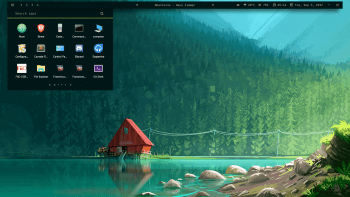
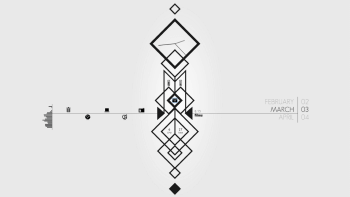
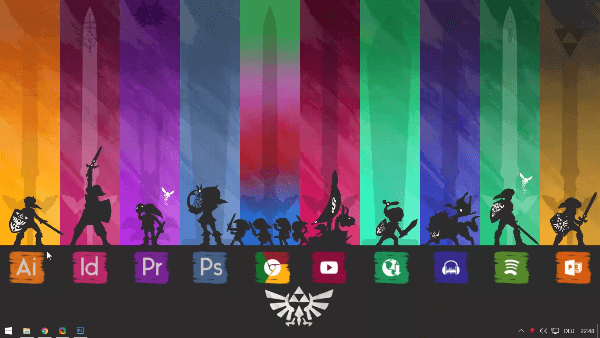
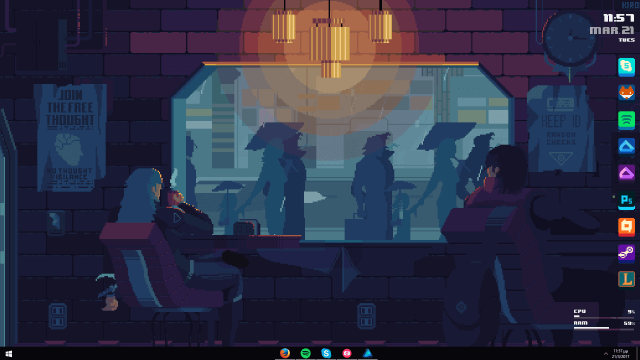
Community Showcase
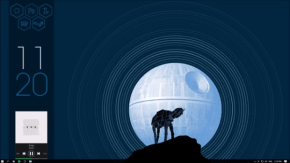
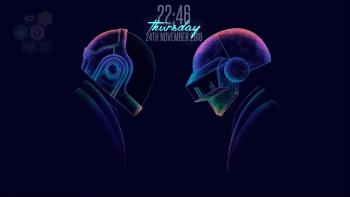
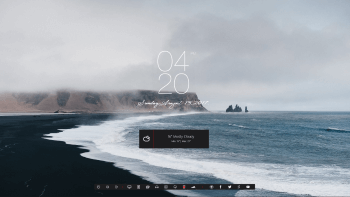
Here’s a curated collection of creative desktops designed by the Rainmeter community.

Advanced Features of RainMeter
Extending Functionality with Plugins
RainMeter supports a wide range of plugins that enhance its capabilities beyond its core features. These plugins allow users to integrate additional functionalities
Integrating External Data Sources
One of RainMeter’s powerful features is its ability to integrate external data sources seamlessly into desktop widgets.
Performance Optimization Tips
Additionally, users can prioritize essential widgets, disable unused skins when not needed, and periodically review and update skins and plugins to leverage improvements in efficiency and performance.
Custom Scripting and Advanced Configuration
By leveraging Lua scripting language or RainMeter’s own scripting capabilities, users can create intricate behaviors, dynamic interactions, and personalized functionalities within their skins.

What is Rainmeter?
Rainmeter is a desktop customization tool for Windows that allows users to display customizable skins on their desktops.
Is Rainmeter free to use?
Yes, Rainmeter is completely free to download and use.
Can Rainmeter be used on macOS or Linux?
Rainmeter is primarily designed for Windows and does not support macOS or Linux directly. However, there are similar tools available for those operating systems.
How do I install Rainmeter?
To install Rainmeter, download the installer from the official Rainmeter website and run it. Follow the on-screen instructions to complete the installation.
What are Rainmeter skins?
Where can I find Rainmeter skins?
How do I install Rainmeter skins?
To install a Rainmeter skin, download the skin file (.rmskin) and double-click it. Rainmeter will install the skin, and you can then activate it from the Rainmeter manager.
Can I create my own Rainmeter skins?
Is Rainmeter safe to use?
Does Rainmeter consume a lot of system resources?
Can Rainmeter slow down my computer?
How do I remove Rainmeter from my computer?
To uninstall Rainmeter, go to Control Panel > Programs > Programs and Features, find Rainmeter in the list, and click Uninstall.
Can Rainmeter display weather information?
Can Rainmeter show system monitoring information?
Does Rainmeter have themes?
Is Rainmeter compatible with all versions of Windows?
Can Rainmeter change my desktop wallpaper?
How often are Rainmeter skins updated?
Can Rainmeter be used on multiple monitors?
Does Rainmeter have a mobile version?
Can Rainmeter display RSS feeds?
Can Rainmeter be used for gaming setups?
Are there tutorials available for Rainmeter beginners?
Can Rainmeter display custom text or images?
Does Rainmeter support high DPI displays?
Is Rainmeter open source?
Can Rainmeter integrate with other software or services?
Can Rainmeter be used commercially or for business purposes?
Yes, Rainmeter can be used commercially or for business purposes as long as you comply with the terms of the GNU GPL v2 license.
Rainmeter - Customizable Desktop Skins & Themes - Free Now!
Customize your desktop with Rainmeter - create unique skins for hardware meters and audio visualizers to personalize your computer experience.
Price: Free
Price Currency: $
Operating System: Windows 7, 8, 10 and Windows 11
Application Category: Software
4.9